 Social Place
How to add a forum to your Shopify store
Shopify gives you products, a blog and a contact form, but no forum. To let customers ask questions and talk to each other on your store, you add a forum app and place it on a page with the theme editor. No code needed. Here’s how, and what to check before you choose an app.
Still deciding between a forum, Discord and a Facebook group? Read Discord, Facebook group or a forum on your store? first.
Does Shopify have a built-in forum?
No. Shopify’s blog lets customers comment on your articles, but they can only reply to what you publish: they can’t start their own topics. Shopify Community is Shopify’s forum for merchants, not something you can add to your store.
A forum app fills that gap: categories, posts written by customers, replies, profiles and notifications, inside your store.
What to look for in a forum app
- Store accounts. Customers sign in with the account they already have on your store. Every extra sign-up step loses people.
- Your theme’s look. Colors, fonts and corners follow your brand, without writing CSS.
- Product links. Members tag the product they’re talking about, so readers can buy it in one click.
- Instagram. Your Instagram posts, and the posts where customers mention you, can fill the forum from day one.
- Rewards. Points, levels and badges that unlock Shopify discount codes.
- Open or private. A public forum, members-only categories, or both.
- Anti-spam. An automatic filter, and a simple way to manage posts and comments.
- Mobile. Most of your customers will read the forum on their phone.
- Google. Discussions that can show up in search results.
- Languages. If you sell abroad, the forum should speak your customers’ language.
How to add a forum to your Shopify store, step by step
The steps below use Social Place, but most forum apps follow the same pattern.
- Install the app from the Shopify App Store and pick a plan. Every Social Place plan starts with a 7-day trial.
- Create a page for the community. In your Shopify admin, go to Online Store > Pages > Add page, and call it “Community”. Its address becomes yourstore.com/pages/community.
- Create a dedicated template. Open the editor of your published theme. In the page selector at the top, choose Pages > Create template, name it “community” and keep “Default page” as the base. Don’t put the forum on “Default page” itself: it would show on every page that uses it.
- Assign the template to the page. Back in Online Store > Pages, open your Community page, choose “community” under Theme template, and save.
- Add the forum block. In the theme editor, with the community template open, click Add section > Apps and pick the forum block. Save.
- Add the page to your main menu. Go to Content > Menus, open your main menu, add an item that links to the Community page, and save. Give it a spot everyone sees, not the footer.

Social Place then checks the installation for you: it tells you if the block is missing, hidden or on the wrong page, and what to fix. If your forum app offers a block for the homepage, add it too, so visitors see the latest posts as soon as they arrive.
Set it up before customers arrive
- Categories: start with three to five, named with your customers’ words, such as Questions, Your photos, Tips and News.
- Look: your colors and your banner, so the forum feels like your shop and not a generic template.
- Access: open to everyone, private, or a mix with members-only categories.
- First posts: publish 10 to 15, with photos, before you add the page to your menu. Your team posts under their own names, and your Instagram posts can fill the forum too. If the AI assistant drafts some of them, rewrite them in your own words.
Our guide on how to build an online community for your Shopify store covers the first months in detail.
What customer discussions bring to your store
Answers that work for every shopper. A product question asked in public is answered once and read by everyone with the same doubt. Your team answers fewer repeat emails.
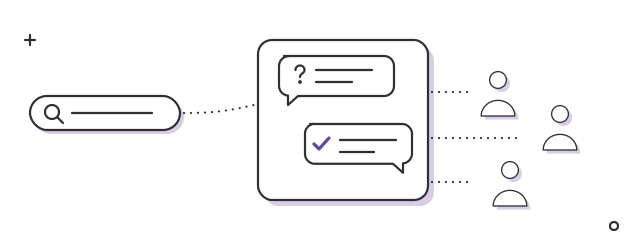
Your customers’ words, on your domain. Customers describe products the way they search for them: “does it work on a gas stove?”, “true to size for wide feet?”. No forum guarantees rankings, but these discussions can show up on Google and bring shoppers to your store rather than to someone else’s site. Google even has a “Discussions and forums” feature for first-hand perspectives from forum sites (Google Search Central).
Proof from real customers, next to the product. Photos and stories posted by customers, with the product linked, show what a product page can’t.
A reason to come back. Replies, new posts and rewards bring customers back to your store between two purchases.
FAQ
Do customers need a new account?
No. With Social Place, they sign in with their usual customer account on your store.
Do I need to code?
No. You add the forum to your theme as a block, from the theme editor, and a guide shows you each step.
Can I make the forum private?
Yes. The whole forum or only some categories, by invitation or on request that you approve.
Can I moderate discussions?
Yes. You manage posts and comments from the admin, appoint moderators, and an anti-spam filter runs all the time.
I’m starting from zero. Does it still work?
Yes. The AI assistant drafts your first posts, which you rewrite in your own words, so the forum isn’t empty when your customers arrive.